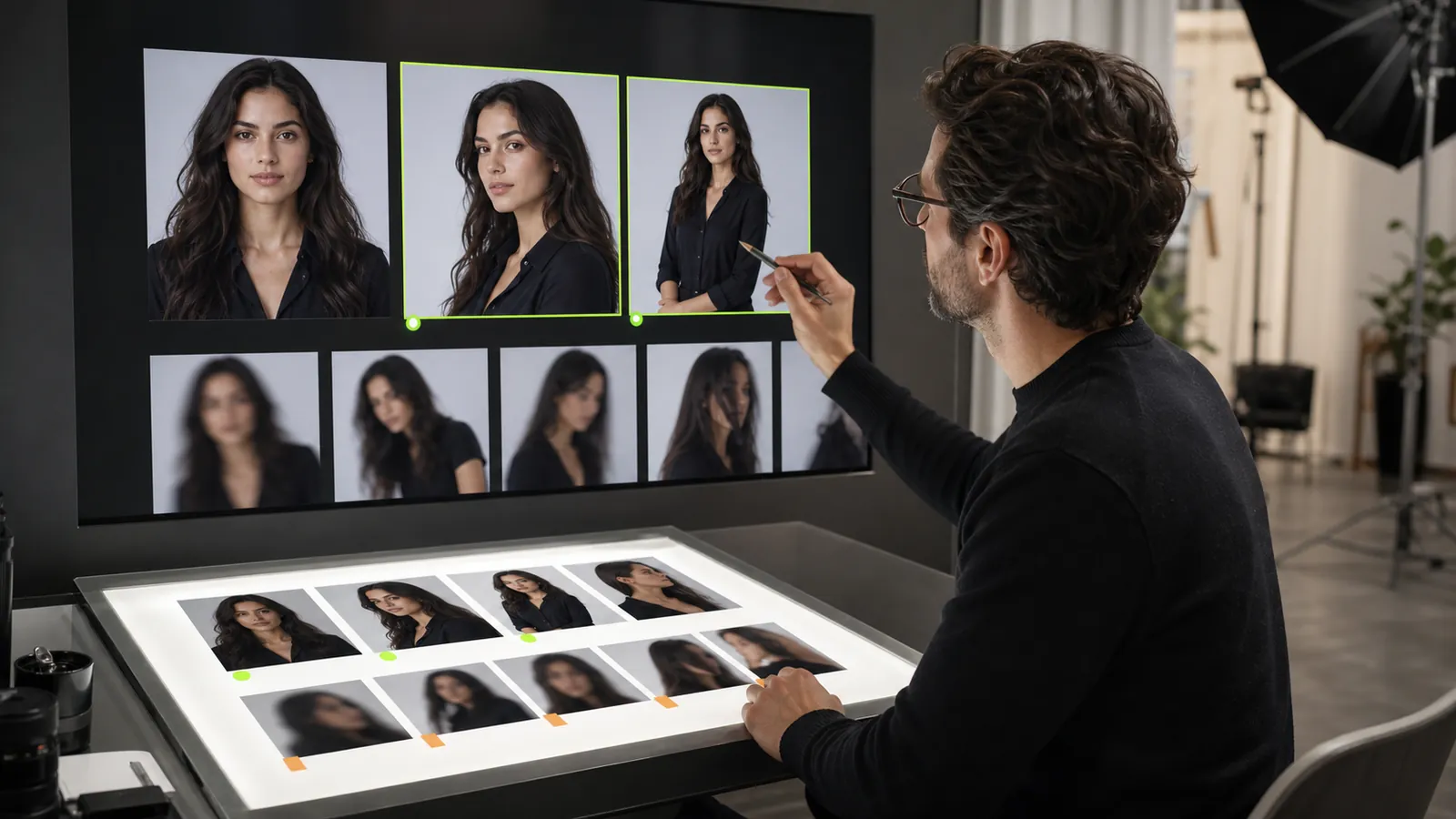
An AI influencer video begins before anything moves. The quality of the source image, the intended motion, and the review process all affect whether the resulting clip is usable. Treating image-to-video as a production workflow—not a guaranteed one-click transformation—makes it easier to diagnose problems and iterate deliberately.
Fanerse provides video generation on eligible plans. Available controls, models, credit costs, and plan access can change, so review the current Pricing page and the confirmation shown in the product before starting a generation.
Start with an image you are allowed to use
Use an image you own or have permission to use. If the source depicts an identifiable person, make sure your use complies with the current Fanerse Content Policy, including its age and consent requirements. Creating motion does not remove the responsibilities attached to the original image or likeness.
Select a source from your creator workflow that already works as a still image. Inspect it at full size before animation. Look for:
- A clearly visible adult subject with a readable pose.
- Hands, face, clothing, and nearby objects that already look coherent.
- Enough visual space for the movement you intend to request.
- A background that will not make small motion unnecessarily difficult.
- A composition appropriate for the destination where you plan to use the clip.
Image-to-video can animate an existing artifact; it should not be expected to repair every weakness hidden in the source. If the still image is not acceptable, refine the image first.
Define one motion goal
Write a one-sentence description of the intended clip before opening the video controls. Keep it specific and observable: a small camera move, a natural posture adjustment, a head turn, or another supported motion available in your account.
Avoid combining several unrelated actions in the first attempt. When a clip asks the subject, camera, clothing, hair, and background to change at once, it becomes harder to identify why the result succeeded or failed.
The first generation should answer one question: can this source image support the intended motion while keeping the creator recognizable?
If your account exposes motion references or preset controls, choose the option that most closely matches your goal. Do not assume that a control available in a screenshot, older article, or another plan is available in your current workflow.
Run the image-to-video workflow
- Select the source image. Open the approved image from the creator gallery or the relevant generation context.
- Open the available video workflow. Video access depends on the current plan and product configuration.
- Choose the supported motion settings. Keep the first attempt simple and record the option you selected.
- Review the displayed cost. Credit requirements can vary by generation type and may change. Use the value shown before confirming rather than copying a number from an old post.
- Start the generation. The request is processed as a generation job. Allow it to finish instead of repeatedly submitting the same request.
- Review the completed clip. Inspect the result in the gallery or result view before deciding whether to keep, refine, or reject it.
For a broader overview of the product category, see AI video generation for creators. This tutorial focuses on the production decisions around one source image rather than claiming a particular output.
Review more than the first frame
A thumbnail can look convincing while motion problems appear later. Watch the complete clip more than once and inspect it at normal speed. If the interface permits scrubbing, pause at different points.
Use a consistent review checklist:
- Identity: does the creator remain recognizable throughout the clip?
- Motion: does movement follow a plausible direction without abrupt jumps?
- Face and hands: do visible features remain coherent as the subject moves?
- Clothing and objects: do patterns, edges, and held items remain stable enough for use?
- Background: does the scene remain visually coherent rather than bending or flickering distractingly?
- Framing: does the clip preserve the subject and important content within the intended crop?
Separate identity problems from motion problems. If the source character changes visibly, revisit the image or creator configuration. If the character remains recognizable but movement is excessive, adjust the motion choice rather than rebuilding the identity.
Iterate one variable at a time
When a result needs another attempt, change one meaningful input and record it. You might select a simpler motion, choose a source with more space around the subject, or use a different supported setting. Changing everything at once prevents you from learning which adjustment helped.
Keep the original source, each generated clip, and a short reason for acceptance or rejection. This creates a useful production history without pretending every generation is successful. It also makes it easier to compare future product changes against the same material.
Prepare the approved clip for use
Before using a clip, confirm the destination’s current format, disclosure, audio, accessibility, and content requirements. Platform rules change independently of Fanerse. A clip generated successfully is not automatically compliant with every social or advertising platform.
Use an AI-generated disclosure where appropriate, avoid implying that a fictional creator is a real person, and review any captions or surrounding copy for misleading claims. If audio is added later, confirm that you have the necessary rights and consent for the audio or voice involved.
Keep a clean master of the approved output before applying platform-specific crops or compression. If the clip contains an artifact that could mislead, expose personal information, or violate another person’s rights, do not publish it.
A practical completion checklist
- The source image is authorized and depicts an adult.
- The still image passes visual review before animation.
- The intended motion is specific and supported by the current interface.
- The displayed plan access and credit cost were reviewed before generation.
- The full clip was checked for identity, motion, objects, and background continuity.
- Rejected attempts and iteration changes were documented.
- The approved clip is reviewed against the destination platform’s current rules.
For current product guidance, visit the Help Center. To see how image and video fit into the broader identity-guided workflow, start from the Fanerse homepage.