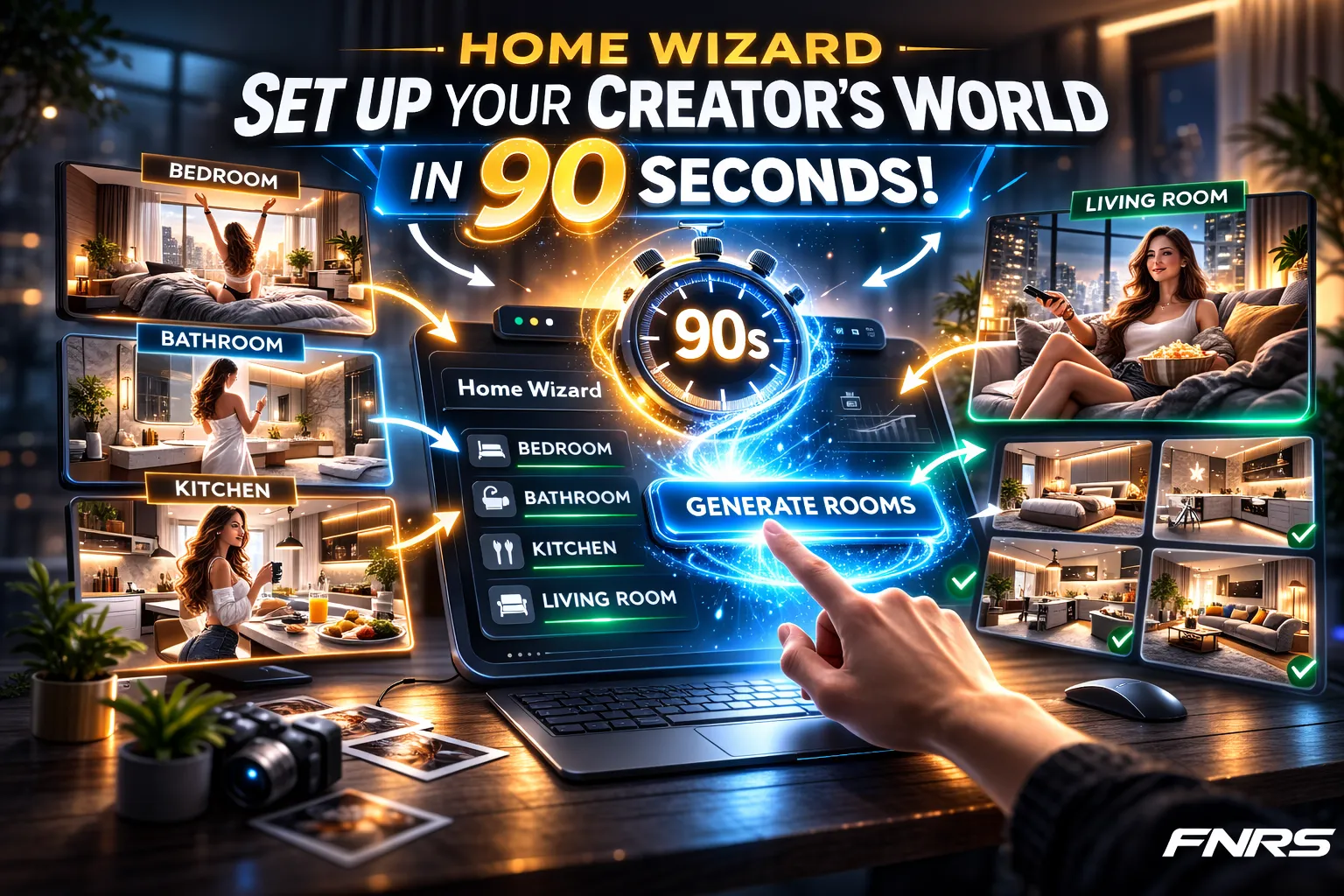
If you've read about Persistent Worlds and understand why consistent environments matter, this is the practical how-to. The Home Wizard takes you from zero to a fully configured world in about 90 seconds.
Before You Start
You'll need an AI creator already set up with face and body DNA configured. The Home Wizard creates environments for a specific creator — each creator in your roster gets their own independent set of rooms.
Optional: Have reference room photos ready. These aren't required — the AI can generate rooms from scratch — but if you have a specific aesthetic in mind (modern minimalist, cozy bohemian, luxury penthouse), uploading a reference photo that captures that style will guide the generation.
The Process
Step 1: Open the Home Wizard
Navigate to your creator's Studio page. You'll see the Home Wizard option — click to begin. The wizard walks you through four core rooms in sequence: bedroom, bathroom, kitchen, and living room.
Step 2: Bedroom
Upload a reference bedroom photo or let the AI generate options. The system produces several variations — different layouts, lighting moods, and design styles. Browse the options and pick the one that best fits your creator's aesthetic.
Tip: Choose a bedroom with natural light sources (windows). Morning content is the most-generated bedroom content, and windows give the AI opportunities for beautiful natural lighting variation.
Step 3: Bathroom
Same process — reference photo or AI generation, pick your favorite. Bathrooms are primarily used for mirror selfies, beauty routines, and getting-ready content.
Tip: A bathroom with a large mirror works best. Mirror selfies are a staple of influencer content, and the AI handles mirror reflections well when the reference clearly shows a mirror setup.
Step 4: Kitchen
Kitchen environments appear in morning coffee content, cooking scenes, and casual lifestyle shots. Choose one with a visible counter space or island — these give the AI a natural surface to compose around.
Step 5: Living Room
Living rooms are used for relaxing-at-home content, casual lounging, reading, and general lifestyle imagery. A living room with a couch or comfortable seating area works best.
Step 6: Done
Once all four rooms are selected, they're saved as your creator's permanent environments. Each room appears as a clickable thumbnail in your generation interface — select one and every image generated will use that room.
Beyond the Core Four
The Home Wizard covers the four essential rooms, but Fanerse supports additional environment types: gym, workplace, and outdoor. These can be configured as creator assets from the settings and will appear alongside your Home Wizard rooms in the environment selector.
Changing Rooms Later
You can re-run the Home Wizard at any time to regenerate rooms. However, keep in mind that changing a room means your new content won't match your old content's environment. For audience consistency, it's better to get it right initially and stick with it.
If you absolutely need to change a room, consider it a "remodel" — some creators even post about it ("New bedroom who dis?") to make the transition feel intentional rather than inconsistent.